How to Use CeeDee
How to Use CeeDee
Using CeeDee is straightforward. The following steps walk you through the complete process of opening CeeDee, asking a question, and reading a response.
Step-by-Step Guide
Open CeeDee — Click the Ask CeeDee floating widget at the bottom left corner of CulinarySuite.
Type your question — Click into the chat input field at the bottom of the panel and type your question in plain English. Be specific about the feature you are asking about — instead of "How do I create something?", ask "How do I create a Recipe in CulinarySuite?". Use exact feature names from the app (e.g. Recipe Kit, Primary tab) for the most precise guidance. Ask one question at a time — CeeDee performs best when each question focuses on a single task or topic.
Submit — Press the send icon (arrow) or hit Enter to submit your question.
Wait for the response — You must wait for CeeDee to finish answering before asking another question. The input field will display "Please wait for CeeDee to finish answering before asking a new question." while CeeDee is processing. Do not submit a new question until the response is fully displayed.
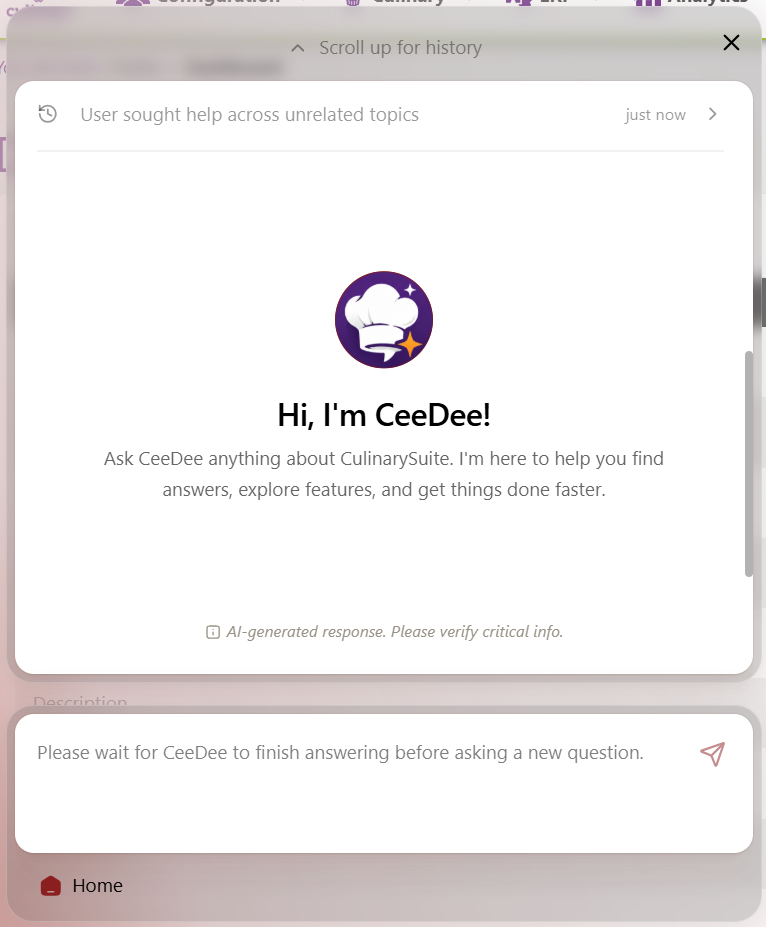
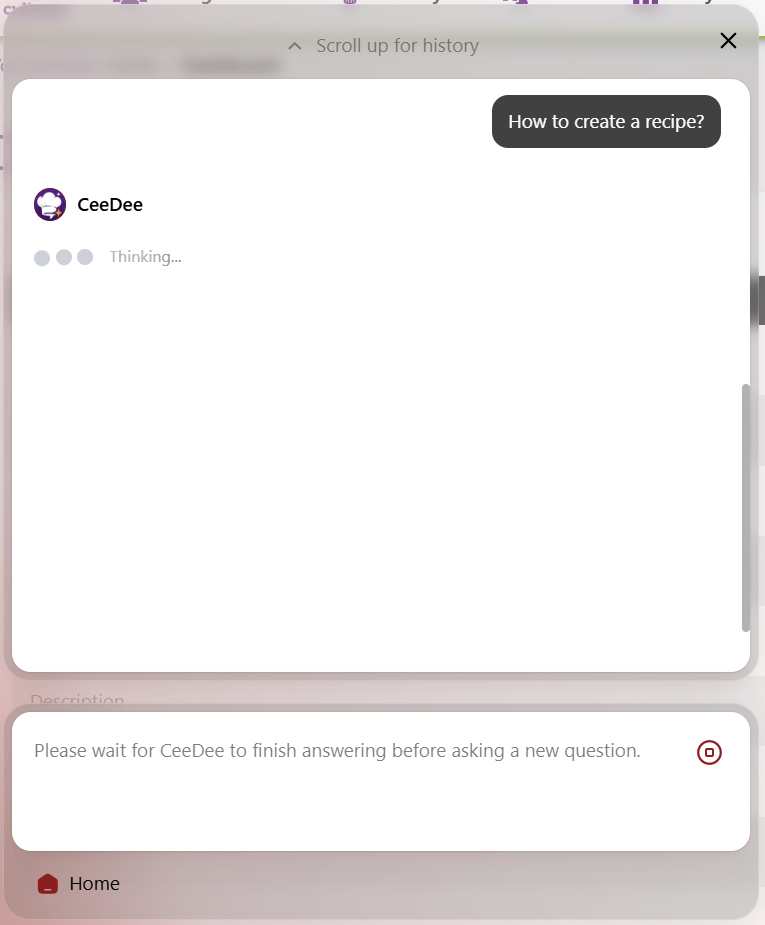
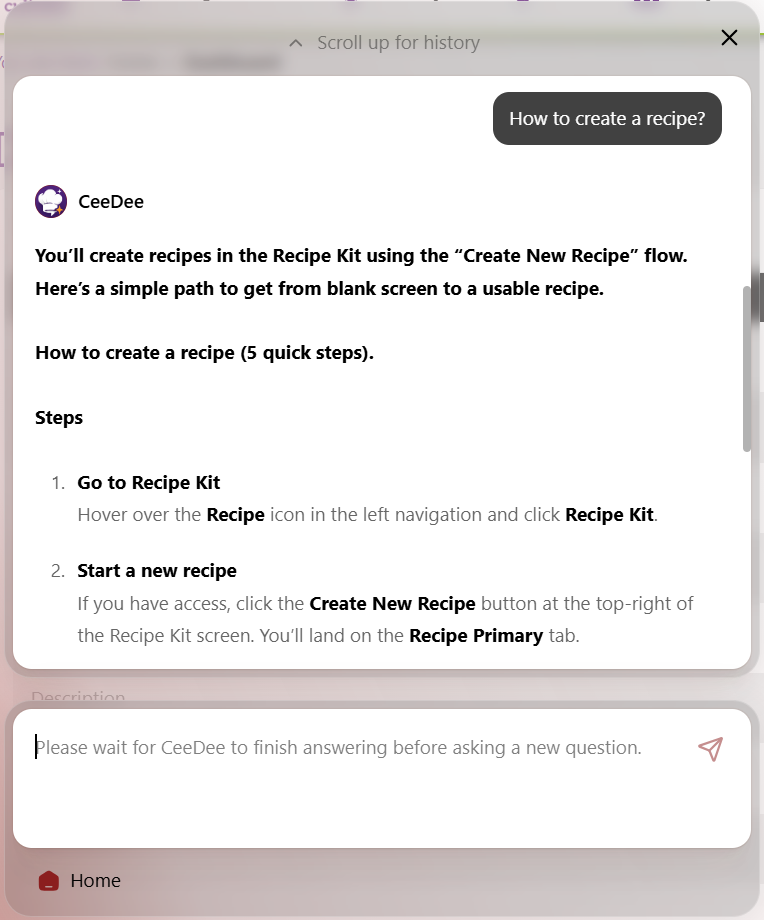
Read the response — CeeDee returns a clear, structured answer — often with numbered steps where applicable. If the first response does not fully address your need, try rephrasing or adding more context.
Rate the response — Use the thumbs up / thumbs down buttons on the response to rate the quality of the answer. This feedback helps improve CeeDee over time — the more you rate, the better it gets.
Ask a follow-up — Once CeeDee has finished responding, you may ask another question in the same session.
Viewing Chat History
Within a session, CeeDee retains your conversation history. To scroll back and review previous questions and answers, click the Scroll up for history link at the top of the chat panel.
Understanding CeeDee Responses
CeeDee is designed to provide clear, structured answers. The following describes the response formats you will encounter:
Plain text answers — For straightforward questions, CeeDee provides a concise paragraph response.
Step-by-step instructions — For procedural questions, CeeDee returns numbered steps with clear actions.
Prerequisites — Where relevant, CeeDee will note any prerequisites — for example, confirming you have the correct permissions.
Bold key terms — Important actions, menu items, and button names are displayed in bold for quick scanning.
AI disclaimer — Every response includes: "AI-generated response. Please verify critical info." Always review responses before acting on important tasks.
Wait indicator — While CeeDee is processing, the input area shows "Please wait for CeeDee to finish answering before asking a new question." Do not submit a new question until this message disappears.
CeeDee's knowledge is limited to what is documented in the CulinarySuite Help Portal. If CeeDee cannot find an answer, it will indicate this clearly. For topics not covered, please contact CulinarySuite Support.